
Home›Timetable
TimetableA class timetable in minutes, not a week of rubbing out.
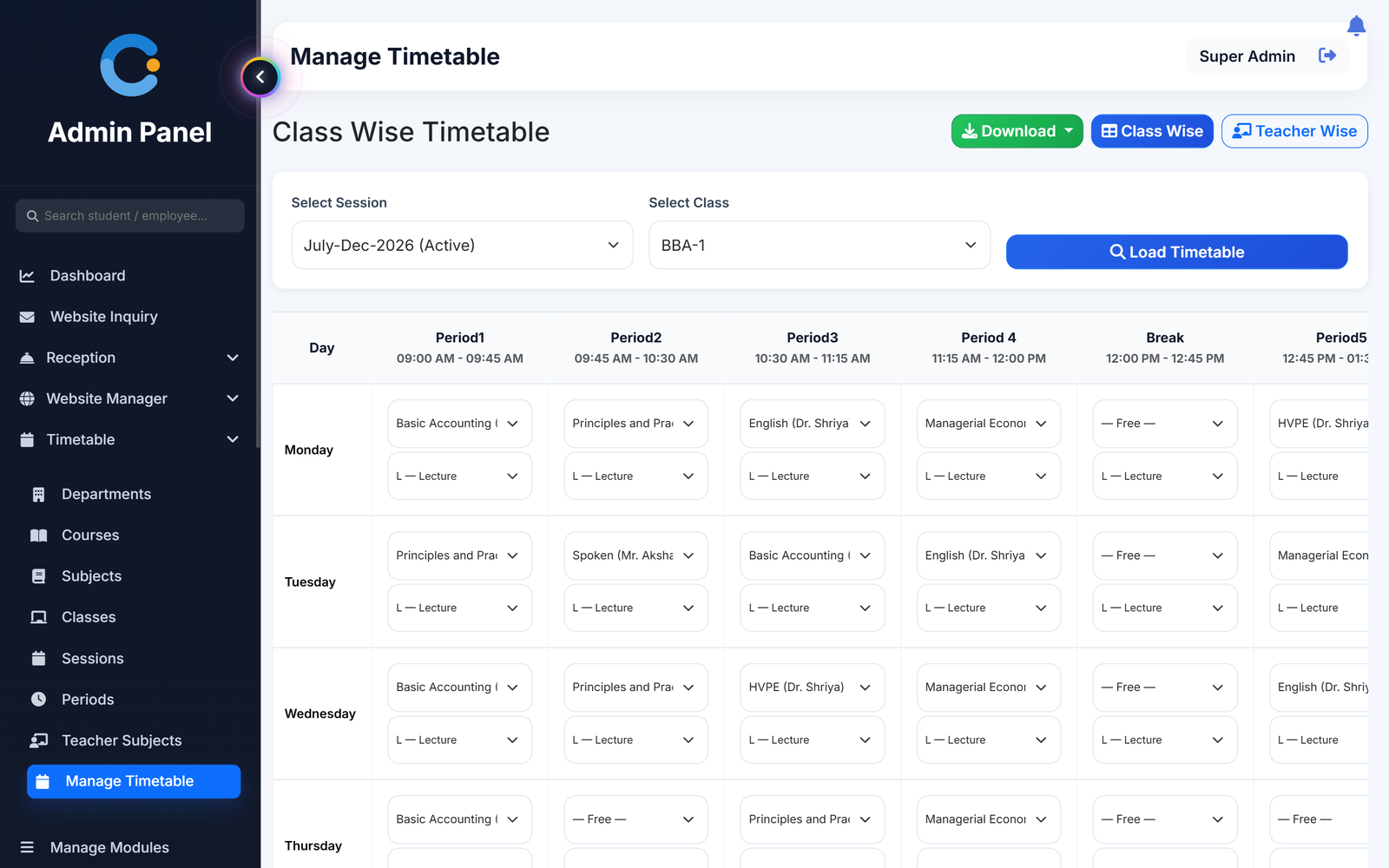
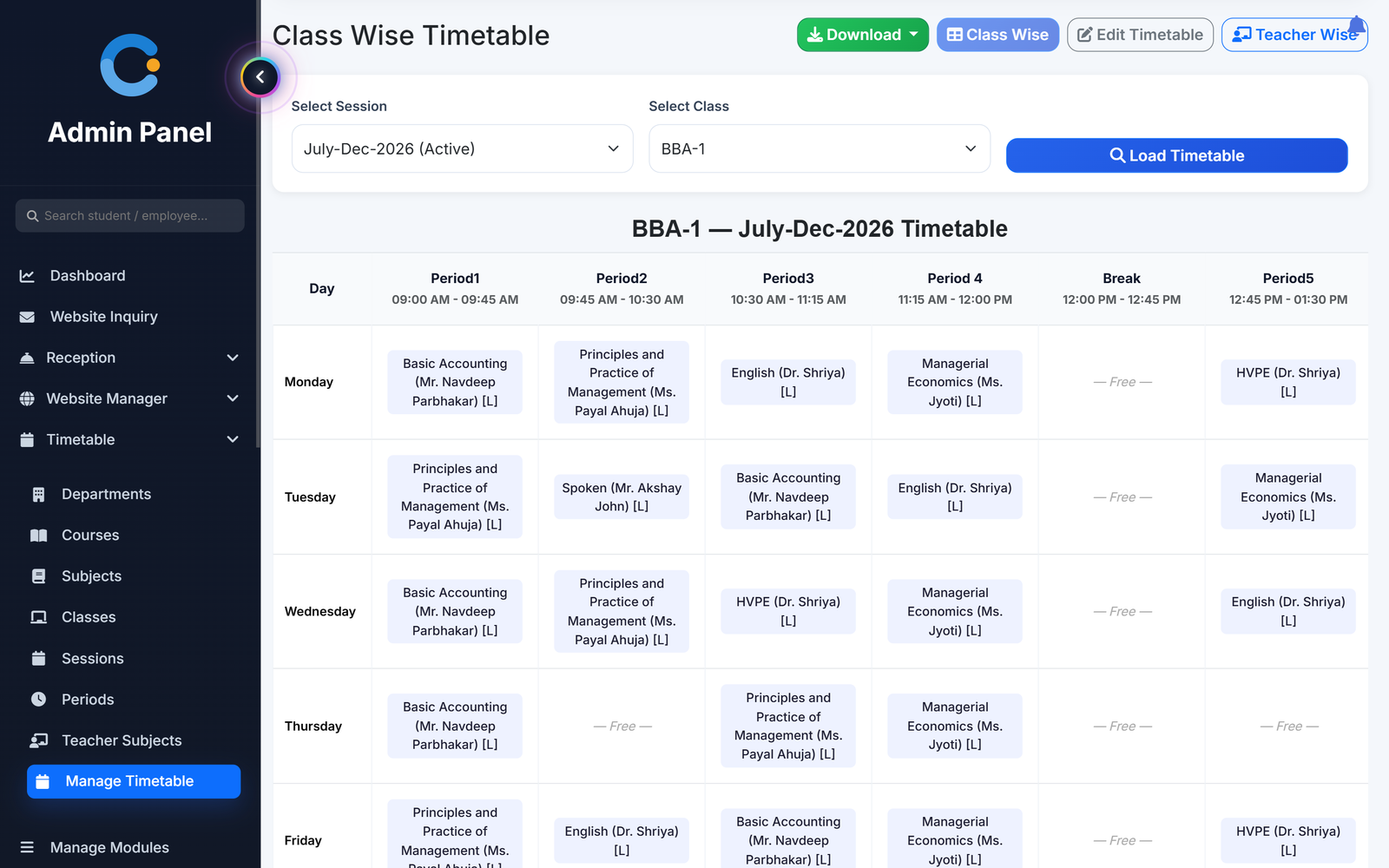
Set your periods once, tell CampusOS how many lectures, tutorials and practicals each subject needs a week, and generate the timetable. A teacher is never booked in two classes at the same time. Edit any slot by hand, download the timetable as PDF or Excel, and teachers and students see theirs on the web and in the Android app.
Where timetables usually go wrong
One teacher in two rooms
When the timetable is made class by class, the same teacher easily lands in two classes in the same period. Auto-generate checks the teacher across every class in the session and leaves that slot alone.
Rebuilding it from scratch each session
Subjects, teachers and weekly counts are already saved against each class. One click builds the whole week and you only adjust the slots you want different.
Practicals that need two periods
A practical is placed as two periods in a row, and never across the break.
Nobody can see their own timetable
Teachers see their own periods across all their classes, students and parents see the class timetable, and the PDF or Excel copy is one click away.
How it works
Set up the periods, assign teachers to subjects, then build the week.
- Set the periods. Add each period with its name, start time, end time and order. Periods named break or lunch are kept out of the timetable.
- Assign teachers and weekly counts. For every class, assign a teacher to each subject and enter lectures, tutorials and practicals per week.
- Generate or fill in by hand. Click Auto Generate for a ready week, or choose the subject for each day and period yourself. Anything that could not be placed is listed so you can fix it.
- Share it. View it class-wise or teacher-wise and download it as PDF or Excel. Teachers and students see it in their own login.
What is included
Who sees what
Admin / principal
Sets the periods, builds or edits the timetable for any class and downloads class-wise and teacher-wise copies.
Head of department
Builds and edits the timetable for the classes in their own department, and checks it in the Android app.
Teacher
Sees all their periods across classes, with today's schedule, on the web and in the Android app.
Student and parent
Students see the class timetable on the web and in the Android app. Parents see it in the web portal.
Asked about timetable
Can it generate the timetable automatically?
Yes. Auto Generate uses the lectures, tutorials and practicals per week saved for each subject. It replaces that class's existing timetable, after asking you to confirm, and lists anything it could not place.
Will a teacher be booked in two classes at once?
Not when you auto-generate. It checks the teacher across all classes in the session. When you edit slots by hand there is no clash check, so use the teacher-wise view to look over the week.
Does it handle practicals?
Yes. A practical is placed as two consecutive periods and never across a break.
Does it support Saturday?
Not at present. The timetable runs Monday to Friday.
Is attendance linked to the timetable?
Yes. Teachers mark attendance period by period from the timetable slot.
Can we download the timetable?
Yes. The class-wise and teacher-wise views both download as PDF and Excel.
Modules that share the same records
Attendance
Period-wise attendance by the teacher, locked after saving, with class and student reports.
Mobile app
One Android app for teachers and students: attendance, timetable, results, assignments and more on the phone.
Exams & results
Exam schedules, marks entry by the subject teacher, grades, results and printable report cards.
See timetable running with your institution's name on it.
- A real walkthrough, not a slide deck. We set your institution up while you watch.
- Bring your hardest question. Fees and exam patterns are where most systems fall over.
- No obligation. If it is not right for you, we will say so.
Book a free demo
Tell us about your institution and we will show you exactly how it would run.